-.-. .-- NET de KJ5MTE
User Manual
October 2026
What CW NET is
CW NET is a Discord Activity for practicing Morse code (CW) with other people in a Discord voice channel. You send with your keyboard, mouse, the on-screen key or your own rig, everyone hears you as a clean tone, and each person's sending is decoded into text so you can check your copy.
It's a practice tool. It isn't connected to any radio, and nothing you send goes on the air.
What you need
- Discord, on a computer for the best experience. The desktop app or a web browser both work; phones work with the on-screen key.
- A voice channel to launch it in. Everyone in that channel who opens the Activity joins the same net.
- Something to key with, any one of:
- your keyboard (Control keys) or mouse buttons
- a USB paddle or key adapter that acts as a keyboard or mouse, such as a VBand adapter (see Key adapters, below)
- your rig's sidetone or a practice oscillator, through the browser companion (see Audio input with your rig, below)
- nothing at all: type a message, or generate a practice line, and the Activity keys it for you (see Text input and Training text, below)
- Headphones or speakers. The Activity makes its own tones; your Discord voice chat keeps working as normal alongside it.
Getting started
You're on the net in under a minute: launch the Activity in a voice channel, authorize it, and click Start audio.
- Join a voice channel in a Discord server where CW NET is available.
- Open the Activities menu (the rocket icon in the voice channel's controls) and choose CW NET.
- Authorize the app. Discord asks to let it see your name and avatar. That's all it gets: no email, messages or friends list.
- Click Start audio. Browsers need one click before a page may make sound.
- Click anywhere inside the Activity so it receives your key presses. Keyboard keying only works while the Activity has focus.
- Set your speed. Choose Set Speed (WPM) close to the speed you send at.
- Send a test, such as VVV, and watch it appear in your own row.
On your first visit you're given a random tone between 400 and 900 Hz, so voices on the net are easy to tell apart. You can change it under Settings, then Tone; your choices are remembered next time.
The screen
Everyone on the net gets a row: yours is always at the top, and the others follow, with whoever started sending most recently first. Each row is outlined in that person's tone color, from red for low tones to violet for high ones, and glows while they're sending.
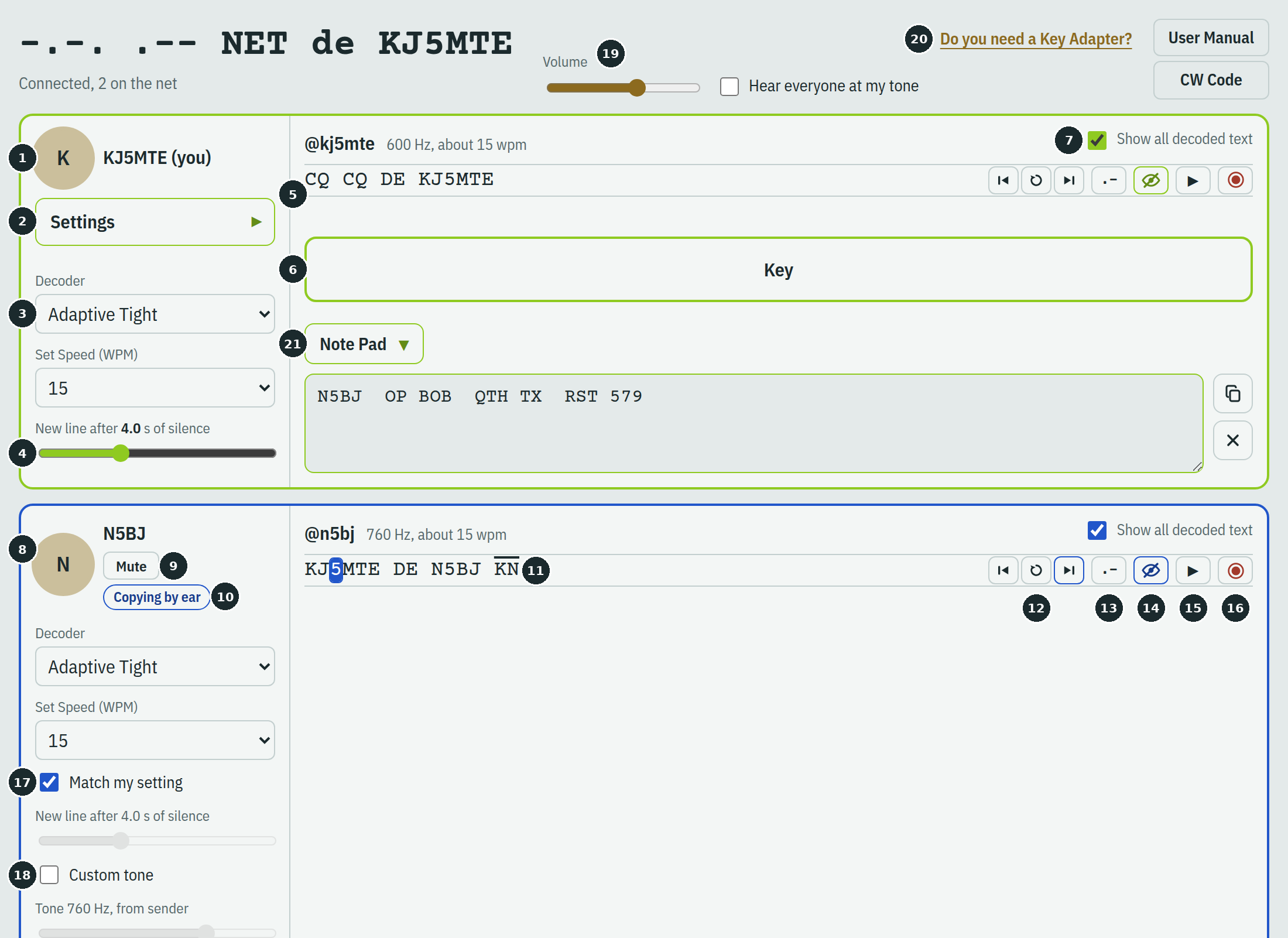
| # | Part | What it does |
|---|---|---|
| 1 | Your name and avatar | Your row. The avatar ring lights up while your key is down |
| 2 | Settings | Opens your tone, input and key options; click again to tuck them away |
| 3 | Decoder and Set Speed (WPM) | How your own sending is decoded, and the speed it expects |
| 4 | New line after … s of silence | How long a pause starts a new line |
| 5 | Your lines | Your decoded sending, newest at the bottom; older lines scroll |
| 6 | Key | The on-screen key. Paddle modes show Dit and Dah paddles instead |
| 7 | Show all decoded text | Shows or hides every line in that row |
| 8 | Another operator | Their row; it glows in their color while they're sending |
| 9 | Mute | Silences that person for you only |
| 10 | Copying by ear | That person has hidden the decoded text of your sending |
| 11 | Prosign | Prosigns are shown with a bar over the letters |
| 12 | Character buttons | Play the previous character, the same character again, or the next one; the character playing is highlighted |
| 13 | Letters or Morse | Shows that line as dots and dashes (.-) or back as letters (A) |
| 14 | Eye | Hides that line's text (eye with a slash) or shows it again (open eye) |
| 15 | Replay | Plays that line's sending again, for you only; available once the line ends |
| 16 | Save audio | Saves that line as an audio file you can post on Discord; available once the line ends |
| 17 | Match my setting | That row starts new lines on your line-gap setting; untick to set it separately |
| 18 | Custom tone | Hear that person at a tone you choose |
| 19 | Volume and Hear everyone at my tone | Overall volume, and an option to hear everyone at your own tone |
| 20 | Key Adapter, User Manual and CW Code | Information on connecting a real key, this manual, and the code reference with every character, Q-code and abbreviation |
| 21 | Note Pad | Notes for your QSOs, with Copy and Clear buttons; click the label to show or hide it |
Sending
Choose how you key under Settings, then Input; everything else on the net works the same whichever you pick.
| Input | How it works |
|---|---|
| Straight key | The tone sounds exactly as long as you hold the key |
| Iambic A | Paddles: hold one for repeated dits or dahs, squeeze both to alternate. Letting go of a squeeze stops after the element that's sounding |
| Iambic B | As Iambic A, but letting go of a squeeze adds one more opposite element |
| Bug | The dit paddle sends automatic dits while held; the dah paddle works like a straight key |
| Audio input | Your rig or oscillator keys the net through a browser tab (see Audio input with your rig) |
| Text input | Type a message and the Activity keys it for you at your set speed (see Text input, below) |
| Training text | The Activity generates a random practice line and keys it, hidden so you can copy it (see Training text, below) |
Which keys and buttons
With a paddle or bug input, Paddle keys chooses what you press. In Straight key mode, either the dit or the dah input works as the key. Choose VBand if you connect a real key or paddle with a VBand USB adapter (see Key adapters, below).
| Paddle keys | Dit | Dah |
|---|---|---|
| VBand | Left Control or [ |
Right Control or ] |
| Mouse | Left mouse button | Right mouse button |
| Custom | Any key you choose | Any other key |
- Custom: click Set, then press the key you want; Escape cancels. Plain letter or symbol keys work best, since keys like Alt or Tab may be caught by Discord or your computer.
- Mouse: press anywhere in the Activity except on its controls. The right-click menu is switched off there so it doesn't interrupt a dah.
- Reverse paddles swaps dit and dah, for left-handed sending.
- On a phone or tablet, tap the on-screen Key or the Dit and Dah paddles.
Key adapters
To send with your own straight key, paddle or bug, you need an adapter that connects it to your computer by USB. It acts like a keyboard, so the Activity reads your keying as key presses. The Do you need a Key Adapter? link at the top of the Activity opens this information too.
-.-. .-- NET doesn't sell adapters and isn't affiliated with any adapter maker. The Activity was mainly tested with the VBand adapter from Ham Radio Solutions, and it's the adapter we recommend. Buy it at hamradio.solutions/vband, under the Store tab:

- Setting it up: plug it in, choose your Input under Settings, and set Paddle keys to VBand.
- VBand's channels, on the same site, are a great place for a CW QSO when you can't get to your radio, or you're stuck in a hotel room.
- Beware of clones. Ham Radio Solutions says it has received numerous reports of clone or counterfeit VBand adapters that don't work with the VBand website, even though they claim to, and it doesn't support them. Buy from its store to be sure you get the real one.
- Another adapter? Any adapter that acts as a USB keyboard can work: set Paddle keys to Custom and press the keys it sends for dit and dah. Adapters that act as a mouse work with Mouse paddle keys.
Text input
With Input set to Text input, a message box appears at the bottom of your row in place of the on-screen key. Type a message and press Send or Enter.
- It's keyed perfectly at your Set Speed: 1 unit inside a character, 3 between characters and 7 between words. Everyone hears it and sees it decoded, just as if you'd keyed it by hand, and it plays as your sidetone.
- Prosigns go in angle brackets, such as
<AR>,<KN>or<SK>, and are sent as one run with no gaps between the letters. Letters can be typed in lower case. - Each message starts its own line, labeled [text input] for everyone. The label isn't keyed, and it stays visible even when the line's text is hidden.
- Press Stop to end a message partway; your text stays in the box so you can send it again.
- Your message is checked first. A character that has no Morse code, or a prosign that doesn't exist, is pointed out and nothing is sent until you fix it.
Training text
With Input set to Training text, a drill picker and a Generate button appear at the bottom of your row. Pick a drill and press Generate: the Activity makes a fresh random line and keys it at your Set Speed and tone.
| Drill | Each line |
|---|---|
| Random letters | 5 groups of 5 letters |
| Letters and numbers | 5 groups of 5 letters and numbers |
| Letters, numbers and punctuation | 5 groups of 5, including . , ? / - |
| Random CW words | 8 common CW words and abbreviations, such as TNX, FB, QTH and 73 |
| Random callsigns | 5 callsigns, mostly US with some from other countries |
| Random QSOs | One transmission from a QSO, such as a CQ, an answer, a report exchange or a sign-off, with random calls, names, locations and reports |
- The line is hidden on everyone's screen, labeled [training text], so anyone on the net can copy it. When you've finished copying, show it with the line's eye to check.
- Everyone hears it, and it's decoded like any other sending, so Replay, the character buttons and Morse view all work on it.
- Press Stop to end a line partway. Your drill choice is remembered next time.
Speed and tone
Set Speed (WPM) sets how fast the paddle and bug modes send, and the speed your decoder expects. With a straight key, your own timing sets the speed, so choose the setting closest to it.
Tone sets the pitch everyone else hears for you, from 400 to 900 Hz. Your row's color follows it.
If Discord's push-to-talk is set to Control, keying with Control also opens your microphone. Change push-to-talk in Discord, or use Mouse or Custom keys.
Reading the decoded text
Every row decodes that person's sending on your screen, and you choose how for each row separately. Start with Adaptive Tight at about the sender's speed, and change it only if the copy looks wrong.
Decoder
| Decoder | Best for |
|---|---|
| Strict | Checking textbook timing: a dah must be at least twice a dit, at the set speed |
| Strict (Auto Detect) | Textbook timing at whatever speed the sender actually uses |
| Adaptive Loose | Senders whose timing varies, with longer pauses between words |
| Adaptive Tight | Most senders; it learns each person's dits and dahs as they go |
| Adaptive Custom | Fine-tuning: your own settings for dah length, letter gap and word gap |
A decoder can't fix sending it can't distinguish. If a sender's dahs are barely longer than their dits, letters may come out wrong whichever decoder you use; that's useful feedback for them.
Set Speed and the red warning
Each row has its own Set Speed (WPM); set it close to that person's sending speed. With an adaptive decoder, a red note under it tells you when the speed is off:
- "You may want to decrease the set speed" means their dits are as long as this setting allows.
- "You may want to increase the set speed" means their dits are as short as it allows.
Lines
A new line starts once a sender pauses for the time set under New line after … s of silence: 4 seconds at first, adjustable from 1 to 10. Your setting applies to your row and to everyone ticked Match my setting; untick that in someone's row to give them their own.
- Spaces grow with the pause. After the first word space, another is added for each further word gap of silence, so a longer pause shows as a wider gap until the line ends.
- The newest text stays in view. While a line is being sent, its row scrolls so the line is visible even when it wraps.
- [text input] at the start of a line means it was typed and keyed by the Activity rather than keyed by hand, and [training text] means it's a generated practice line, hidden until you show it. Both labels stay visible when the line is hidden.
- Show all decoded text in each row shows or hides all its lines. It starts ticked; untick it to practice copying by ear. The sender then sees a Copying by ear tag under your name, so they know you're copying them by ear.
- The eye on a line hides or shows just that line: an eye with a slash hides it, and an open eye shows it again.
- Letters or Morse switches one line between letters and dots and dashes. It shows
.-while you see letters andAwhile you see code. In code, characters are separated by a space and words by a wider gap, and a*shows the pattern that was actually sent. It's greyed out while the line is hidden. - Replay plays a line again, for you only, at that person's tone. Press it again to stop.
- Save audio (the red record button) saves a finished line as a WAV file, with the sender's exact keying at the tone you hear for them. The download opens in your browser, and Discord plays WAV files right in the chat, so you can post it in any channel. Files are named with the operator and time, such as
N5BJ-2026-10-20-1432.wav, and a line can be up to 5 minutes long. Save the file within 15 minutes, while the download link lasts. - Character buttons step through a line one character at a time, using the sender's own timing: previous (|◀), the same character again (↻), and next (▶|). The first press starts at the first character. With the text showing, the current character is highlighted, in letters or in code; with it hidden, the line reads "Playing character 3 of 12". A prosign counts as one character.
Prosigns
Prosigns appear with a bar over the letters. When copied out of the Activity they become plain letters.
| Prosign | Morse | Meaning |
|---|---|---|
| AR | · – · – · | End of message |
| AS | · – · · · | Wait |
| BK | – · · · – · – | Break |
| BT | – · · · – | Pause or new paragraph (shown as BT, not "=") |
| CL | – · – · · – · · | Closing station |
| CT | – · – · – | Start of transmission |
| HH | · · · · · · · · | Error |
| KN | – · – – · | Go ahead, named station only |
| SK | · · · – · – | End of contact |
| SN | · · · – · | Understood |
| SOS | · · · – – – · · · | Distress |
A pattern that isn't a letter, number, punctuation mark or prosign shows as *.
Hearing others
Each operator sounds at their own tone and gets a matching color, so you can tell voices apart by ear and by eye. All of these choices affect only what you hear.
| To | Do this |
|---|---|
| Change the overall volume | Move Volume at the top |
| Hear everyone at your own tone | Tick Hear everyone at my tone. Row colors stay the same, so you can still tell people apart |
| Hear one person at a different tone | Tick Custom tone in their row and move its slider; their row's color follows |
| Silence one person | Click Mute under their name. Their lines still appear and Replay still works; they aren't told |
Custom tones and mutes are remembered for that person next time you're both on the net.
Row colors run from red at 400 Hz through orange, yellow, green, blue and indigo to violet at 900 Hz.
Note Pad
The Note Pad at the bottom of your row is a place to jot down calls, names and reports during a QSO. Click Note Pad to show or hide it.
- Type anywhere in the box. Typing there never keys anything, even if you press Control, and in Mouse paddle mode clicking in it doesn't send a dit.
- Copy (the top button) copies all your notes to the clipboard, so you can paste them into a log or a Discord message. A checkmark shows it worked.
- Clear (the X) empties the pad. If you clear it by mistake, press the same button again within 5 seconds: it shows an undo arrow and puts your notes back.
- Your notes are kept in your browser, along with whether the pad is open, so closing or reloading the Activity doesn't lose them. They're never sent to anyone. Drag the box's lower corner to make it taller.
The CW Code page
Click CW Code at the top right for a code reference that opens over the Activity; keying pauses while it's open. It plays at your speed and tone, which you can change at its top.
Sending tab
Every letter, number, punctuation mark and prosign, followed by Q-codes (including the net Q-signals for running a directed net) and common CW abbreviations. Each shows its code and meaning, with a speaker button to hear it.
- Find filters every section by code or meaning: "weather" finds WX.
- The links under Find jump to a section.
Receive tab
A flow chart for working out what you heard: start at the octopus, and follow the dit side for each dit and the dah side for each dah.
- A to Z is the classic chart of the letters; Everything adds numbers, punctuation and prosigns.
- Type a character in the box to see its code, hear it with Play, and see its path light up on the chart. Each key replaces the last, so the box always holds one character.
- For a prosign, type its two letters in a row, such as S then K. For SOS, type S, O, then S.
- A key that isn't in the code shows as
*.
Audio input with your rig
You can key the net with your own rig or practice oscillator: a browser tab listens to its sidetone and sends your keying under your name. Discord doesn't let Activities use the microphone, which is why this runs in a separate tab.
- In the Activity, open Settings and set Input to Audio input.
- Click Open audio input in your browser. Discord asks you to confirm leaving it; confirm, and the companion page opens in your browser. The Activity then shows "Linked: your browser tab is sending as you."
- In the companion page, click Start listening and allow the microphone when your browser asks.
- Feed it your sidetone, either with the microphone near your rig's speaker, or with an audio cable from the rig's headphone or line output to your computer's input.
- Tune it, the first time. The Tune section opens by itself on your first visit. Click Find tone and key for a couple of seconds, or set Listen for to your sidetone pitch. Then adjust Trigger level until your keying pushes the meter well past its red mark and the room's quiet stays below it. Your settings are remembered, and Tune stays tucked away after that.
- Send. Keep the tab open. While it hears you, it reads "Listening: hearing your tone". Your keying appears under your name for everyone and is decoded in your Activity row.
Good to know:
- The link is single-use and expires after 5 minutes. Refreshing the tab reconnects without a new link.
- Closing the Activity disconnects the tab; open a new link next time. Opening a new link also replaces any older tab.
- Keyer makes no sound? Tick Play a sidetone in the companion page to hear your keying. Use headphones: if the microphone hears the sidetone, it will key itself.
- Nothing being heard? If the page says no tone has been heard yet, open Tune and use Find tone while keying.
- Decoding happens in the Activity, with your own Decoder and Set Speed settings; the companion page only listens and sends.
- Any device with a browser and microphone works, for example a phone propped next to your rig.
- A cable gives the cleanest result. Background noise and other tones near your pitch can cause false keying.
- Listening inside the Activity: if Discord allows the microphone on your device, the same controls, including Play a sidetone, are under Settings with Audio input selected.
Tips and troubleshooting
Most problems come down to focus, speed settings or sign-in, and each has a quick fix.
| Problem | Try this |
|---|---|
| Pressing Control does nothing | Click inside the Activity first; keys only reach it while it has focus. Mouse keying doesn't need focus |
| No sound | Click Start audio if it's showing, check Volume, and make sure nobody you want to hear is muted |
| Your Discord microphone opens when you key | Discord's push-to-talk is on Control; change it in Discord, or use Mouse or Custom keys |
| Someone's copy is garbled | Set that row's Set Speed (WPM) close to their speed, follow any red speed note, or try another decoder |
| Words run together or split oddly | Spacing is decided by pauses. Leave a clearly longer pause between words than between letters |
| Lines break mid-sentence, or never break | Change New line after … s of silence for that row, or untick Match my setting to give that person their own |
| Text input says a character "has no Morse code" | Remove that character, or send a prosign in angle brackets instead, such as <AR> |
| "Couldn't sign in with Discord" | Close and relaunch the Activity. If it continues, tell the host the step named in the message |
| "Disconnected, reconnecting" | Wait a few seconds; it reconnects by itself. Your settings are kept |
| No one else appears | Others must open the Activity from the same voice channel |
| The companion page says no tone heard yet | Open Tune, press Find tone and key while it searches, then check the meter rises past the red mark when you key |
| The audio tab keys on its own | Lower the background noise, raise Trigger level, or use a cable instead of the microphone. If Play a sidetone is on, use headphones |
| Audio input decodes poorly | Turn off any "audio enhancements" or noise suppression for your microphone in your computer's sound settings, and avoid echo by using headphones or a cable |
| "This link has expired or was already used" | Open a new link from the Activity; each one works once, within 5 minutes |
For good practice sessions, agree on a speed for the net, take turns, and end your transmissions with K, KN or AR so others know when to go ahead.
Privacy, rules and contact
CW NET uses as little information as it needs and stores almost nothing.
- What others see: your Discord display name, username and avatar, your keying, and its decoded text. Anyone on the net can replay your recent lines on their own screen. If you hide the decoded text of someone's sending, they see a "Copying by ear" tag under your name. With text input, only your keying and the [text input] label are sent; the text you type never leaves your screen. When you save a line's audio, the server receives only that line's key timing and tone, keeps them in memory for up to 15 minutes so the download link works, then deletes them.
- What's stored: nothing about you on the server beyond short-lived technical logs. Your settings, custom tones, mutes and Note Pad notes are saved in your own browser.
- Microphone audio from the companion tab is analyzed on your device only; just the key presses are sent.
Use it within Discord's rules, keep it friendly, and don't flood the net with keying. It's a practice tool only, never for emergency or on-air traffic.
The full Terms of Service and Privacy Policy are online. Questions, problems and suggestions can go to KJ5MTE through bayousquid.com.